
Add a Free GEO Audit Widget to Your Website for AI Search Visibility
Create a customizable website widget that lets visitors scan their URL and assess their readiness for AI search visibility. Control the results, appearance, and optional next step they see.

We have introduced a free GEO audit scan widget that you can add to your website. With GEO Search Leads, visitors can enter a website URL, receive a score, and assess how ready that website is for AI search visibility.
The widget gives you a practical way to offer an initial assessment directly on your site while keeping control over the messaging, visual presentation, and next step. You can make the scan experience fit your brand, decide how much detail to reveal, and review scans started by visitors from your dashboard.
Widget with score and CTA button example
Widget with score per category and CTA button in dark mode
Turn a website visit into an initial GEO assessment
The new widget lets visitors submit a website URL for a free audit. The resulting score is intended to help them understand their website's readiness for AI search, providing a useful starting point before a more detailed conversation or report.
This can be particularly useful when you want to make a GEO assessment part of your existing website journey. Rather than asking visitors to explain their needs before they see any value, you can give them a direct, self-service way to begin with their own site.
You can manage created widgets and review visitor-initiated scans from the Website Widgets dashboard. That keeps the widget configuration and the scans it generates in the same workflow.
Customize the scan experience for your website
The widget is designed to be adapted to your website rather than presented as a fixed form. You can customize the headline, the website URL input placeholder, and the text on the scan button. These controls let you frame the audit in language that suits the page where it appears, whether that page focuses on a service, a resource, or an initial consultation.
You can also adjust the theme, accent color, and rounded corners. Use the live preview while configuring the widget to check how those choices work together before creating it.
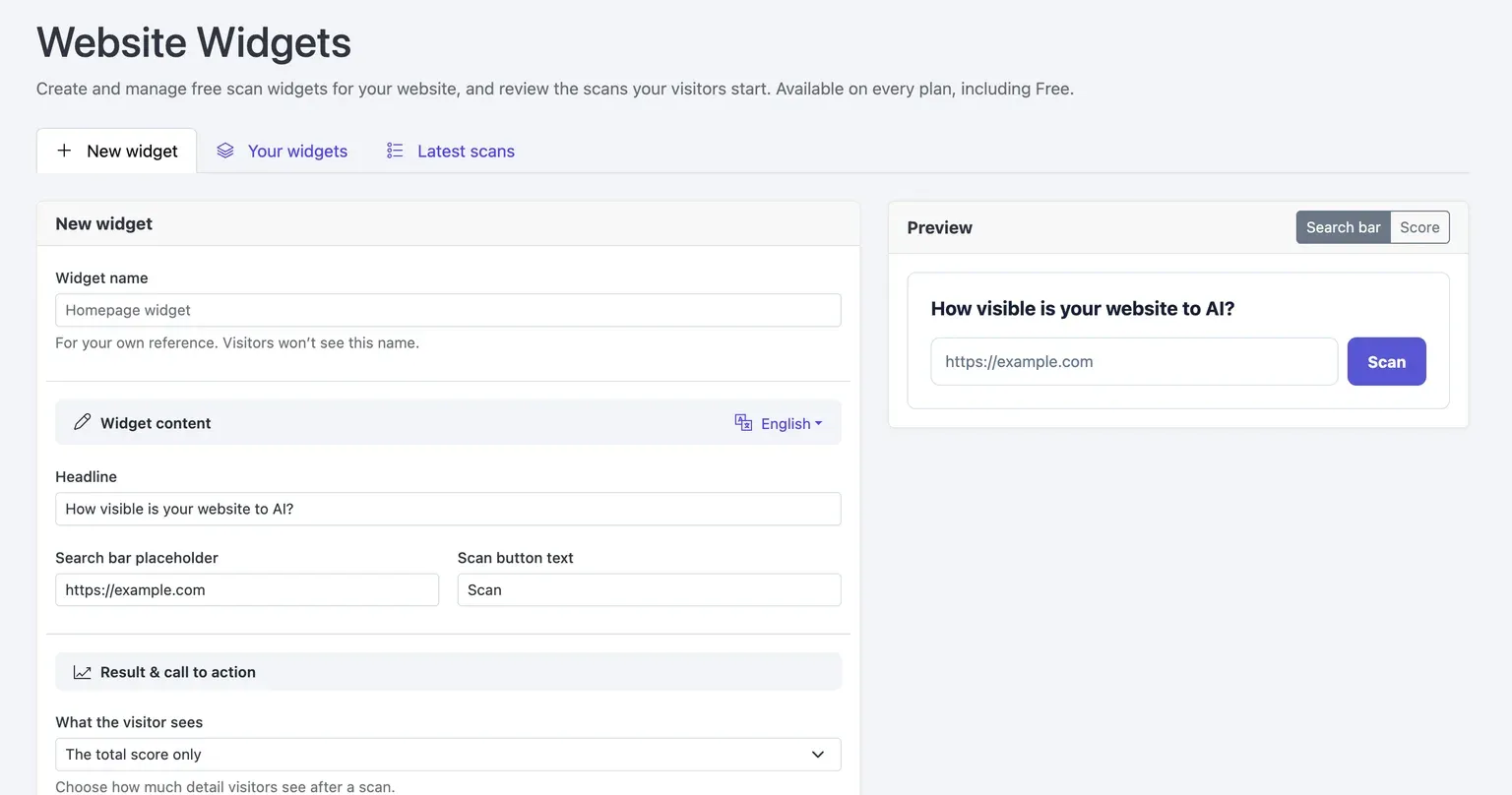
Choose the right level of result detail
You decide what visitors see after their scan. The simplest option shows only the total score. This can keep the interaction focused and give visitors a concise overview of their initial assessment.
Alternatively, you can show the total score together with every category. The category breakdown covers:
- Structured data, which relates to information organized in a format that can be interpreted consistently.
- Machine readability, which concerns how readily a website's content can be read and understood by machines.
- Citeability, which indicates readiness for content to be used as a cited source.
- Agent accessibility, which concerns access for AI agents.
Showing categories can give visitors more context around the score they receive. Showing only the total can be appropriate when you prefer to reserve the detailed discussion for a later step.
Add an optional next step
Each widget can include an optional call-to-action link and button text. This gives you a way to direct visitors after they receive their results, such as toward your contact page, services, or a full report. Because the link and button text are configurable, you can align the next action with the purpose of the page hosting the widget.
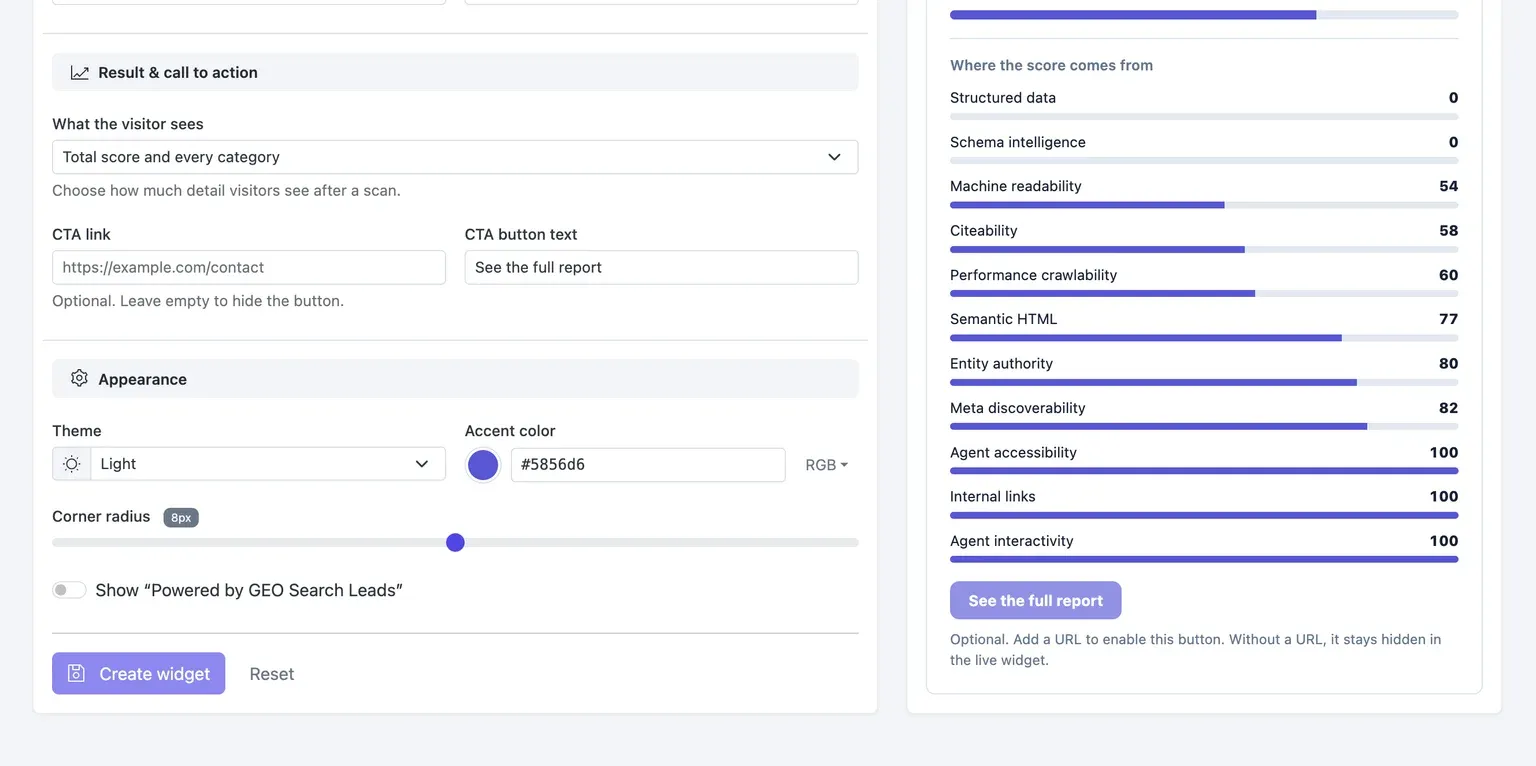
How to create a widget
Set up a widget from the Website Widgets area of your dashboard:
- Open Website Widgets and select New widget.
- Give the widget an internal name, then customize its headline, placeholder, and scan button text. The internal name helps you identify the widget when managing it later.
- Choose which results visitors can see: the total score only, or the total score with every category.
- Add an optional CTA link and button text if you want to guide visitors to a specific next step.
- Adjust the appearance to match your website and check the live preview. You can set the theme, accent color, and rounded corners as part of this step.
- Click Create widget.
Ways to use the widget in your workflow
The widget can support several practical website workflows without changing the core scan experience.
Offer an assessment on a service page
Place a customized audit on a page where visitors are learning about your GEO-related services. A visitor can submit their URL, review the level of detail you have chosen to show, and use the optional CTA to move to the relevant contact or service page.
Start conversations with more context
If your CTA leads to a contact page, the scan can serve as an initial point of reference for the visitor. You can then review visitor-initiated scans in the Website Widgets dashboard as part of your follow-up workflow.
Share a more detailed path when appropriate
If you choose category-level results, visitors can see the areas included in the assessment alongside their total score. An optional button can then point people who want to continue toward a full report or another relevant resource.
Availability
The free audit scan widget is available on every plan, including Free. The supplied configuration options cover the widget's copy, result detail level, optional CTA, and appearance.
Already have an account? Sign in to your account to create and manage your widget.
Frequently Asked Questions
What does the free audit scan widget do?
The widget lets website visitors enter a URL and receive a score that helps them assess website readiness for AI search. You can add it to your website as a customizable scan experience and review visitor-initiated scans from the Website Widgets dashboard.
Which parts of the widget can I customize?
You can customize the headline, website URL input placeholder, and scan button text. You can also choose the theme, accent color, and rounded corners, then use the live preview to check the widget's appearance before creating it.
Can visitors see more than a total score?
Yes. You can choose to show visitors only the total score or show the total score with every category. The available categories are structured data, machine readability, citeability, and agent accessibility.
Can I add a call to action after the scan?
Yes. The widget supports an optional CTA link and button text. You can use it to direct visitors to your contact page, services, or a full report after they receive their audit result.
Where can I manage widgets and review scans?
You can manage your widgets and review scans initiated by visitors in the Website Widgets dashboard. When creating a widget, give it an internal name to help identify it in that management workflow.
Is the widget available on the Free plan?
Yes. The widget is available on every plan, including Free. The update does not specify separate access requirements for the available plans.
Conclusion
The free audit scan widget gives you a configurable way to offer an initial GEO assessment on your own website. By selecting the result detail level, matching the design to your site, and optionally providing a clear next step, you can connect visitor scans with the workflow that makes the most sense for your business.