
Run GEO Scans in ChatGPT With an MCP Connection
Connect the official MCP server to ChatGPT to request website scans, retrieve available results, and discuss reported GEO findings in a single conversation.
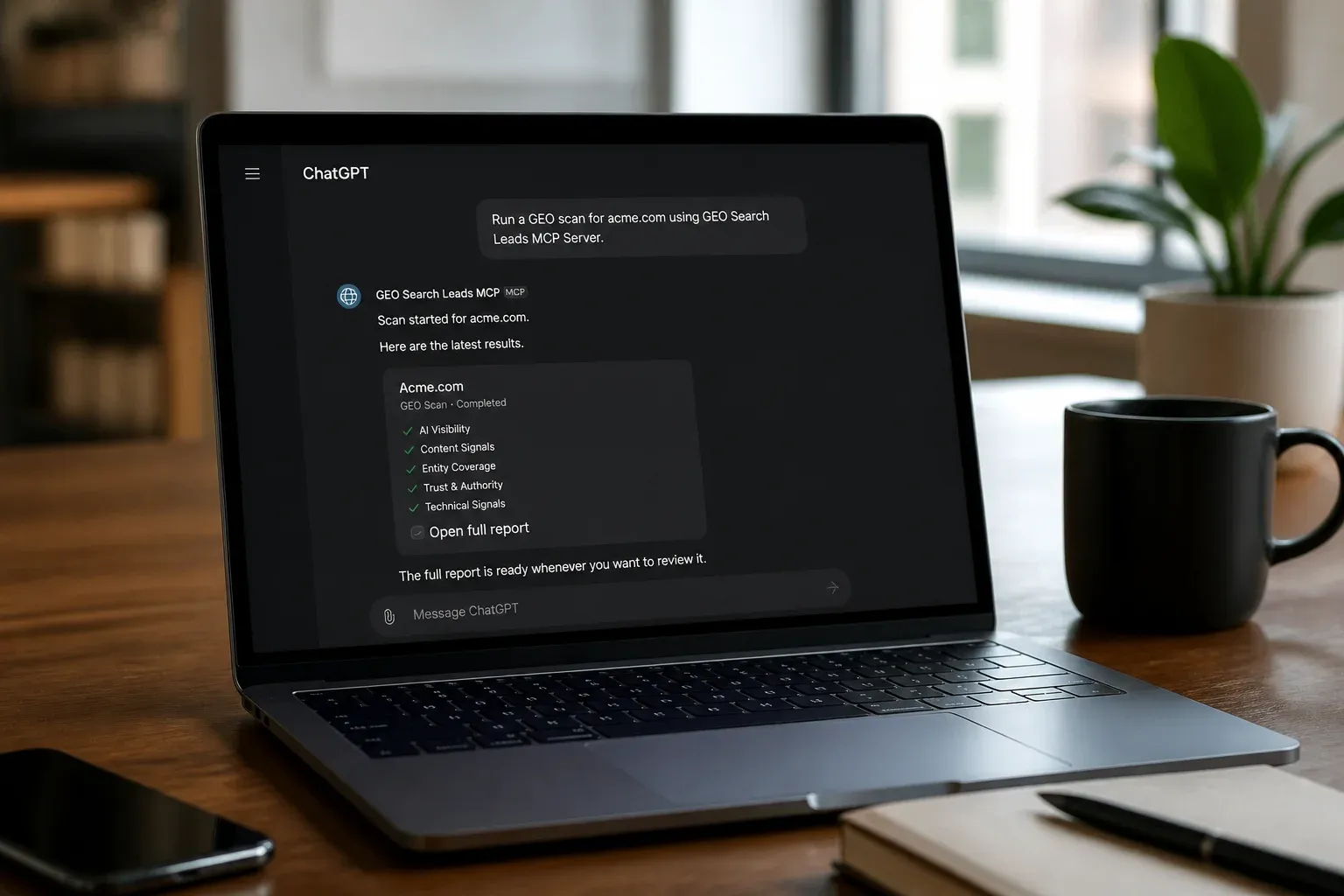
You can now connect GEO Search Leads to ChatGPT through our official Model Context Protocol (MCP) server. The connection lets you request website scans, retrieve available scan results, and ask follow-up questions about GEO scores and reported findings without switching to your dashboard for every step.
This is a practical way to bring scan data into the conversations where you are already reviewing priorities, preparing client updates, or deciding what to investigate next. The assessment still happens through our service. ChatGPT can request the available tools and help explain the information they return.
What the ChatGPT connection does
MCP stands for Model Context Protocol, a standard that lets a compatible AI client use tools from an external service. In this case, ChatGPT can use the connection to request a website assessment, read your available scans and results, and discuss those results with you.
This supports a more focused ChatGPT website audit workflow. Rather than manually moving between a conversation and a report for every question, you can ask for a scan, request an existing result, and continue with questions about the findings in context.
The connection can help you:
- Request a website GEO scan from a conversation.
- Retrieve and summarize an available scan result.
- Ask for a plain-English explanation of a GEO score and its supporting findings.
- Turn reported issues into a clearer investigation list.
- Prepare a client-friendly explanation grounded in the actual scan.
A GEO score is our assessment of website signals. It is not a score issued by ChatGPT or Google. Likewise, this connection does not guarantee rankings, AI citations, traffic, leads, or automatic changes to your website.
Configure the official MCP server in ChatGPT
You need an existing account to authorize the connection, and your plan and account limits continue to apply. ChatGPT menu labels, access, and workspace restrictions can vary, so the custom-server option may not be available in every account.
The following steps use ChatGPT's custom MCP server interface. This is not a directory listing, and it should not be confused with the retired ChatGPT plugins system.
- Sign in to your account and confirm that your plan supports the MCP connection.
- In ChatGPT, open the Plugins area. Open Add, then select Add custom MCP server.

- Enter the supplied connection name. You can optionally add this description: “Run website GEO scans and explore your GEO scores and audit findings in ChatGPT.” For the connection type, select Server URL, then enter the official endpoint:
https://mcp.geosearchleads.com/mcpSelect OAuth for authentication.
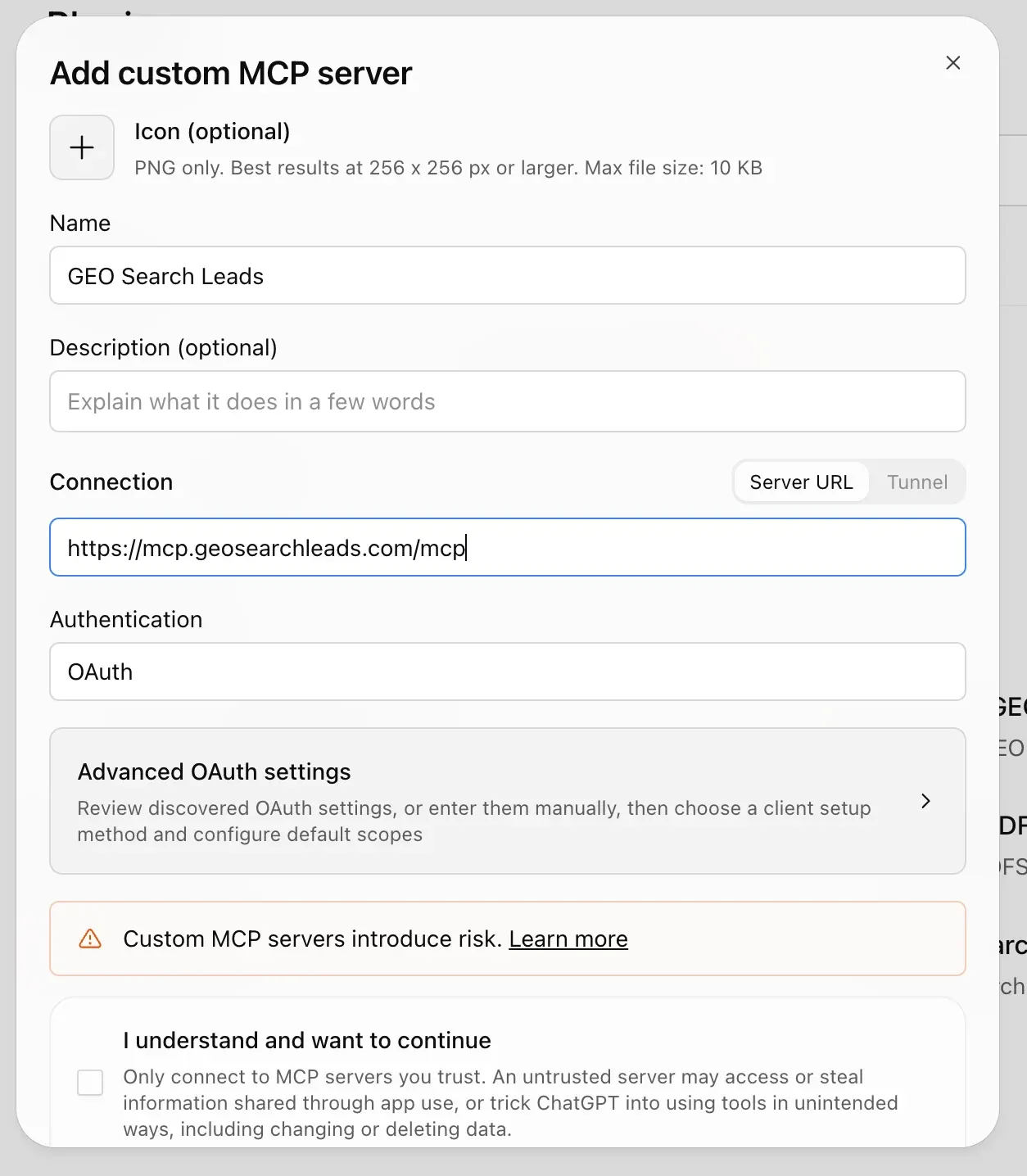
- Review the custom-server notice. Confirm it only if you trust the server, then complete the creation or installation steps presented by ChatGPT.
- When prompted, sign in to the account you intend to connect. Review the requested permissions, then select Allow access to authorize the connection.
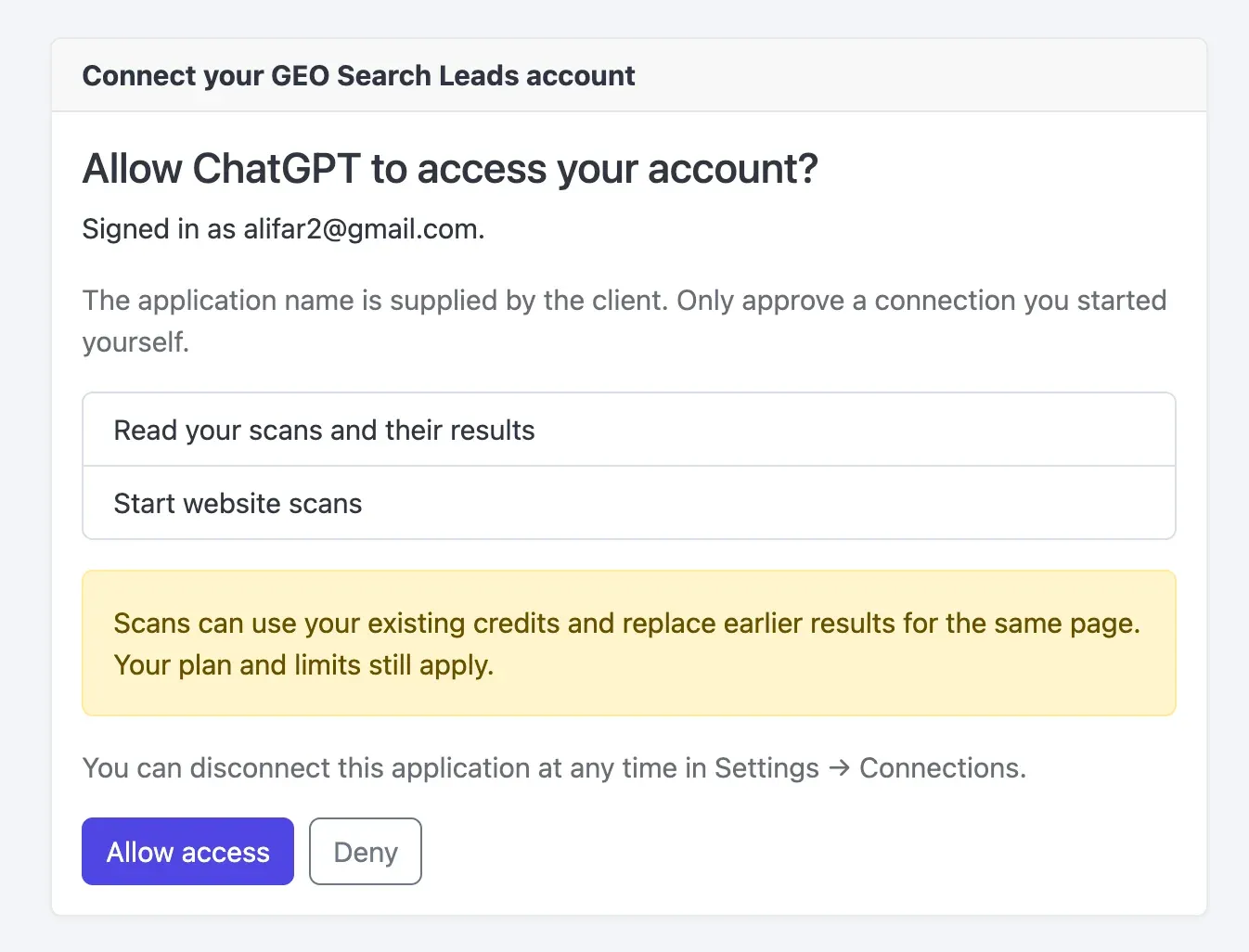
- Make the connected plugin available in your ChatGPT conversation. You can now request a new scan or ask for an existing result.
The authorization screen requests permission to read your scans and their results, as well as start website scans. Review these permissions carefully before granting access.
Be specific about scans and existing results
Starting a new scan and reading an existing result are different actions. State which one you want in your request, particularly when you are reviewing a page that may already have a report.
The consent screen notes that scans can use existing credits and replace earlier results for the same page. That does not mean every request uses credits: reading an available result is distinct from starting a new assessment. Clear wording helps the connection select the appropriate action.
If a scan is still processing, the conversation should report that status and retrieve the completed result when it is available. It should not invent findings while a result is pending.
Requests to try after connecting
Use direct requests that identify the page and the action you want. The examples below are illustrative; responses depend on the tools and information available to the connection.
Example: start a new scan
Scan https://example.com and explain the GEO score and main findings once the scan is complete.
Example: use an existing result
Show my available scans and summarize the result for https://example.com. Use the existing result; do not start another scan.
Example: prioritize reported issues
Based on this scan, which reported issues should I investigate first, and why?
Example: prepare a client explanation
Explain these audit findings in plain English for a client. Separate the reported findings from your additional suggestions.
Example: distinguish evidence from next research
Which recommendations are supported by the scan, and what would need further investigation?
These follow-up questions are useful because they keep the scan as the source for reported findings while making room for clearly labeled additional suggestions. Before implementing a suggested website change, verify it against the report and your wider site context.
Fit the connection into your review workflow
The connection is most useful when you treat it as a conversational layer around your scan data. Start by deciding whether you need a fresh assessment or an existing report. Then use follow-up questions to clarify what each finding means, identify the items that warrant investigation, and shape an explanation for stakeholders.
For teams and consultants, this can make client communication more precise. Ask for a summary based on the actual scan, then request that reported findings remain separate from ideas that require further analysis. That distinction helps prevent assumptions from being presented as audit evidence.
You can revoke access later by opening Settings → Connections in your account and disconnecting the application.
If you already have an account, sign in to your account to configure the connection and review your scans.
Frequently Asked Questions
What can the MCP connection do in ChatGPT?
The connection can let ChatGPT request website scans, retrieve available scan results, and help you discuss GEO scores and audit findings in conversation. The website assessment is performed by our service, while ChatGPT uses the connected tools and returned information to support the conversation.
Does ChatGPT calculate or issue the GEO score?
No. A ChatGPT GEO score in this workflow means a score retrieved and discussed through ChatGPT. The score is our assessment of website signals, not a score calculated by ChatGPT or issued by Google.
How can I avoid starting another scan?
Explicitly ask to read an existing result and state that you do not want a new scan. For example, identify the page URL, request its existing scan, and add “Do not start a new scan.” Reading a result and requesting a new assessment are separate actions.
What permissions does authorization request?
Authorization requests permission to read your scans and their results and to start website scans. Review the account shown during sign-in and the permissions on the consent screen before selecting Allow access.
What happens if a requested scan is still processing?
The conversation should report that the scan is processing and retrieve the completed result when it becomes available. Findings should come from the completed scan rather than being inferred while the assessment is pending.
How do I disconnect the connection later?
You can revoke access from your account settings. Open Settings → Connections and disconnect the application. This removes the connection's access to use the authorized account.
Conclusion
This MCP connection lets you bring scan requests, existing results, and evidence-based follow-up questions into the same ChatGPT conversation. By clearly distinguishing a new scan from an existing report and checking suggestions against the returned findings, you can keep audit discussions practical, traceable, and aligned with your established review workflow.