
Webhooks Connect Completed Scan Results to Your Workflows
Webhooks send completed scan results to your configured receiver, allowing your own systems and automations to react without repeated manual checking. Filter deliveries by scan source and verify signed requests before processing them.
GEO Search Leads now includes webhooks for sending completed website scan results to your own server or automation workflow. When a scan from a selected source finishes, we send its result to your configured receiving URL in a POST request, so your workflow can react when the result is ready instead of repeatedly checking for completion.
This update helps teams create a more consistent handoff from a completed scan to the next step they already use, whether that is a notification, a record in a spreadsheet or database, or a task for someone to review a report. It also lets you keep visitor-driven and internally initiated scans in separate workflows.
What webhooks change in your scan workflow
A webhook is an HTTP notification sent from one system to another when a specified event occurs. In this case, the event is a completed scan that matches the source filters configured for a webhook.
Rather than treating every completed scan the same way, you choose which scan origins should trigger each destination. Available sources are Dashboard, API, Chatbot (MCP), Widget, and Extension. A webhook can use one source, several sources, or all available sources, but at least one source must be selected.
This filtering is useful when different teams or processes handle different types of scans. For example, you could send widget-initiated scans to a workflow that alerts a team member to review the website, while API-initiated scans go to an internal reporting process. A separate workflow can continue after a scan requested through an MCP-connected AI chatbot is complete.
These are configurations for your receiving automation, not built-in follow-up processes. A widget scan can provide a useful starting point for review, but it does not identify a visitor, capture an email address, or establish commercial intent.
Set up a webhook receiver and source filters
Before creating a webhook, prepare a receiver in your own server or in an automation tool that supports incoming webhooks, such as n8n, Make, or Zapier. Your receiver needs to accept POST requests and provide a receiving URL.
- Prepare a webhook receiver in your server or automation tool, then obtain its receiving URL.
- Open Webhooks in your dashboard and select New webhook.
- Paste the receiving address into Webhook URL.
- Under Send for scans started from, select the sources this webhook should handle: Dashboard, API, Chatbot (MCP), Widget, or Extension. Select at least one source. Use Select all when the destination should handle every listed source.
- Enter a Secret, or leave the field empty to generate one. Keep this value available securely for signature verification in the receiving system.
- Leave Enabled switched on and select Save webhook. You can have up to five webhooks enabled at the same time.
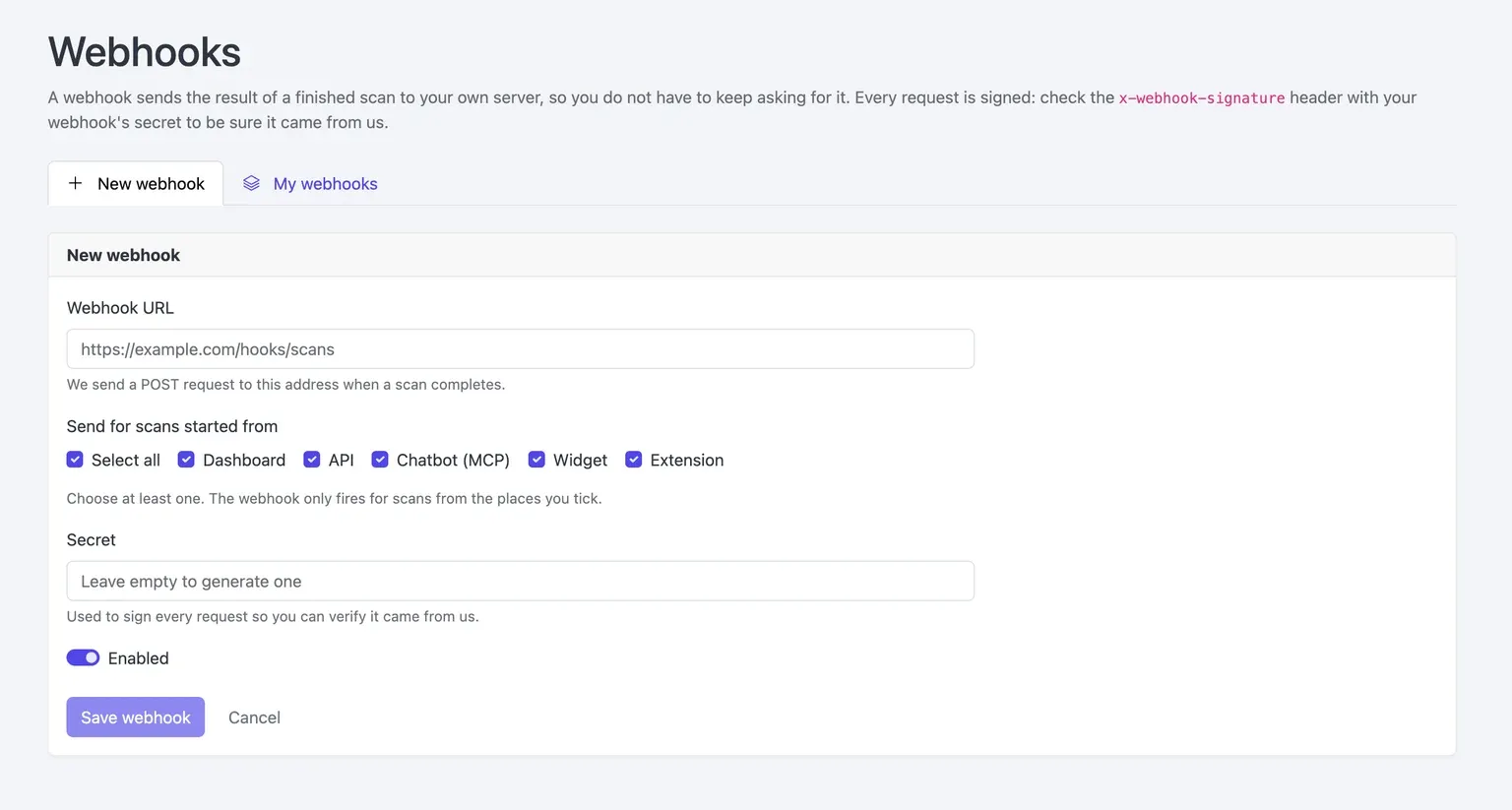
The source selection determines when a destination receives a result. If a webhook is configured for Widget and API scans, a completed Dashboard scan does not trigger that webhook. This makes it possible to route completed results according to how the scan began without manually sorting them afterward.
Verify requests before processing results
Every webhook request is signed. Your receiving system should verify the x-webhook-signature header with the secret assigned to that webhook before it trusts or processes the result. Signature verification helps the receiver check the authenticity of an incoming request.
We do not prescribe an algorithm, signature format, or verification code here. Follow the applicable signature-verification specification in your receiving environment, and use the actual webhook secret associated with that destination.
After saving the configuration, complete a scan from one of the selected sources and confirm that your receiver gets the POST request with the completed result. A scan from an unselected source should not trigger that webhook. Inspect the received payload before mapping any fields into downstream actions, so your workflow uses only fields that are actually present.
Build practical follow-up workflows
Once your receiver has verified a request and you have reviewed its payload, you can configure subsequent actions in the tool or system that receives it. The webhook delivers the completed result; the actions that follow are defined by you.
Common uses include:
- Sending a team notification when a widget-initiated scan completes, so someone can decide whether follow-up is appropriate.
- Recording completed results in a spreadsheet or database to maintain a history without manually copying information.
- Creating a review task for a team member when a report is ready.
- Routing results to different automations based on the scan sources selected for each destination.
- Continuing a workflow after a scan requested through an AI chatbot finishes.
- Applying conditions with fields actually present in the result, such as routing a result for review when its score meets a threshold you choose.
For example, you might create one receiver for Widget scans and another for API scans. The first can notify a review queue, while the second can update an internal reporting record. Separating these routes gives each process a clearer purpose and reduces repetitive handoffs.
Manage active webhook destinations
Open My webhooks to review the destinations you have configured. The view shows each destination URL, its selected source labels, and its enabled status. It also provides controls to edit or delete a configuration.
You can use Edit to change a destination or its source filters, the Enabled toggle to switch delivery on or off, and Delete to remove a webhook. The secret is masked in the overview and can be shown or copied when needed for your receiver configuration.
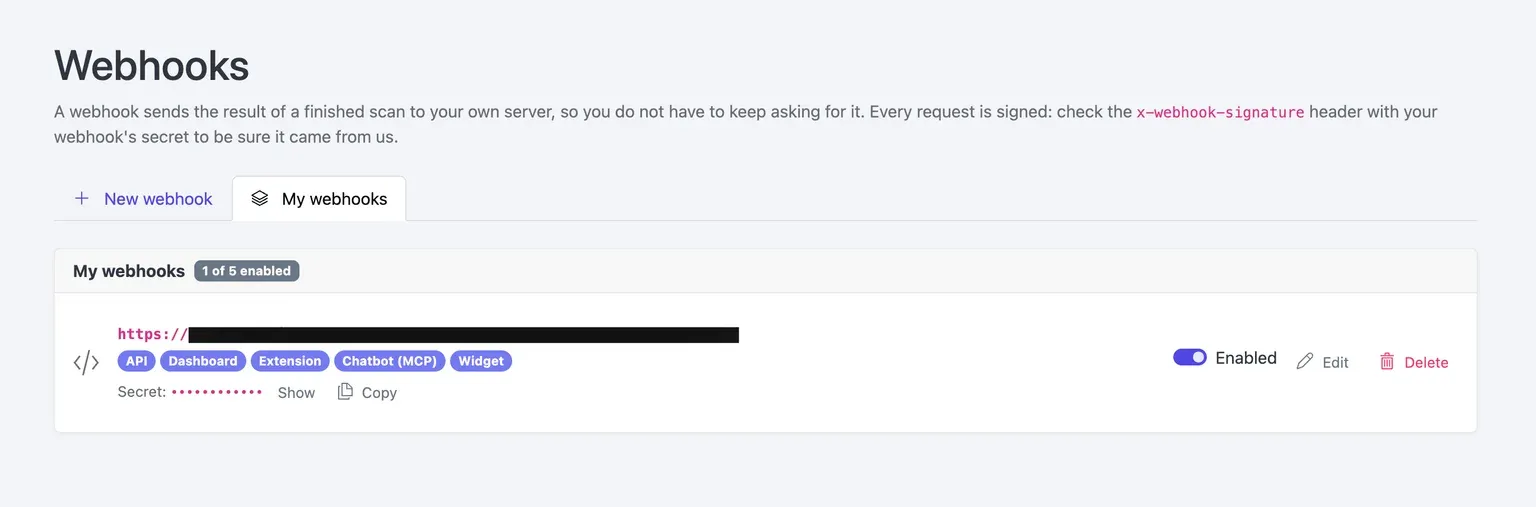
With up to five enabled webhooks available simultaneously, you can keep distinct destinations for separate operational needs while retaining control over which scan sources reach each one.
Ready to connect completed results to your existing processes? Sign in to your account.
Frequently Asked Questions
What triggers a webhook request?
A webhook request is triggered when a website scan completes and the scan originated from a source selected in that webhook's configuration. The completed result is sent to the configured URL as a POST request. Scans started from sources that are not selected do not trigger that particular webhook.
Which scan sources can I select?
You can select Dashboard, API, Chatbot (MCP), Widget, and Extension as scan sources. Choose one, several, or all of these sources for each destination. At least one source must be selected before the configuration can handle matching completed scans.
How many webhooks can be enabled at once?
You can have up to five webhooks enabled simultaneously. This allows you to maintain separate destinations for different source-based workflows, such as internal reporting for API scans and a review workflow for widget-initiated scans.
How should my receiver validate incoming requests?
Your receiver should verify the x-webhook-signature header using the secret associated with that webhook before trusting or processing a result. You can provide a secret when creating the webhook or leave the field empty to generate one. Use the applicable signature-verification specification rather than assuming an algorithm or format.
Can a webhook automatically qualify a widget visitor as a lead?
No. A widget-initiated scan can be routed to a workflow for review, but it does not identify the visitor, capture an email address, or prove commercial intent. Treat the scanned website as information that may support a review process, not as automatic qualification.
Conclusion
Webhooks give you a direct, source-aware way to move completed scan results into the systems and workflows your team already relies on. By filtering deliveries, verifying signed requests, and mapping only confirmed payload fields into your chosen actions, you can reduce manual checking while keeping review, reporting, and follow-up processes clearly separated.