
API Access for GEO Scans and PDF Reports
API access lets you connect website scans, results, account data, and PDF reports to your own applications and automations. Build workflows that fit your client, prospecting, and reporting processes.

GEO Search Leads now includes API access for connecting website scans and reports to the systems and workflows you already use. Instead of handling every task manually in the dashboard, you can send requests from your own application, script, or automation to start scans, retrieve results, check available scan quota, and download PDF reports.
This update is designed for teams that need a more repeatable way to assess multiple websites, move findings into internal tools, or include reports in an established client process. The API provides the available actions and data. You decide how to connect those requests to your CRM, client portal, reporting process, or automation.
What API access adds to your workflow
An API, or application programming interface, lets one software system request data or actions from another. In this case, your systems can communicate with your account through documented endpoints rather than requiring someone to repeat the same dashboard actions by hand.
The available endpoints support three areas of work:
- Account information: Read your profile, current subscription, scan quota, and account history.
- Website scans: Start lite or full scans, list scans, and retrieve an individual scan result.
- PDF reports: Download the report for a scan through the API.
This can help you establish a consistent assessment process across a portfolio of client or prospect websites. For example, a script can process a prepared list of domains, while an internal tool can retrieve returned findings and company details for the relevant record. A reporting workflow can also retrieve a PDF report without requiring a separate manual download.
API access does not automatically create a CRM connection, client portal, scheduler, or reporting workflow. Those integrations are ones you build and manage using the actions and data the API makes available.
Test endpoints in the interactive documentation
Before writing integration code, you can use the interactive API documentation inside the app to test the available endpoints and inspect real responses. This provides a practical way to understand the request and returned data for account information, quota checks, scans, scan results, and PDF reports.
Paste an API key into the Your API key field, run a request, and review the response directly on the documentation page. The page keeps the key only on that page and does not save it.
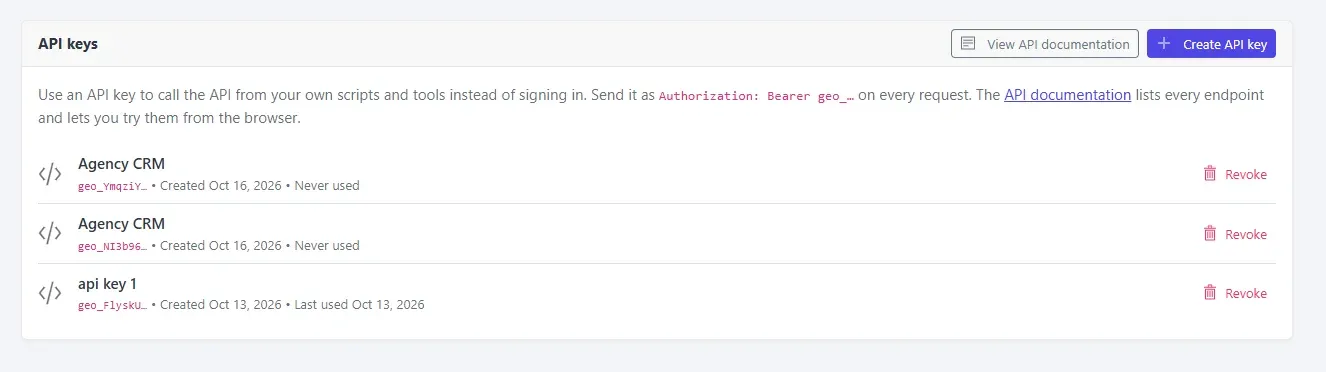
Testing this way can be useful when you are deciding which endpoints belong in a larger workflow. Start with a small request, confirm the data you need is available, then use the endpoint documentation to implement it in your own application or automation.
Create and manage API keys
API requests are authenticated with an API key. Each request must include your key in an Authorization header using the Bearer format:
Authorization: Bearer YOUR_API_KEY
Replace YOUR_API_KEY with your full key, including its geo_ prefix. The full key is shown only once when you create it, so copy it immediately and store it securely. Keep it in your server-side application or your automation tool's credential storage rather than in public website code.
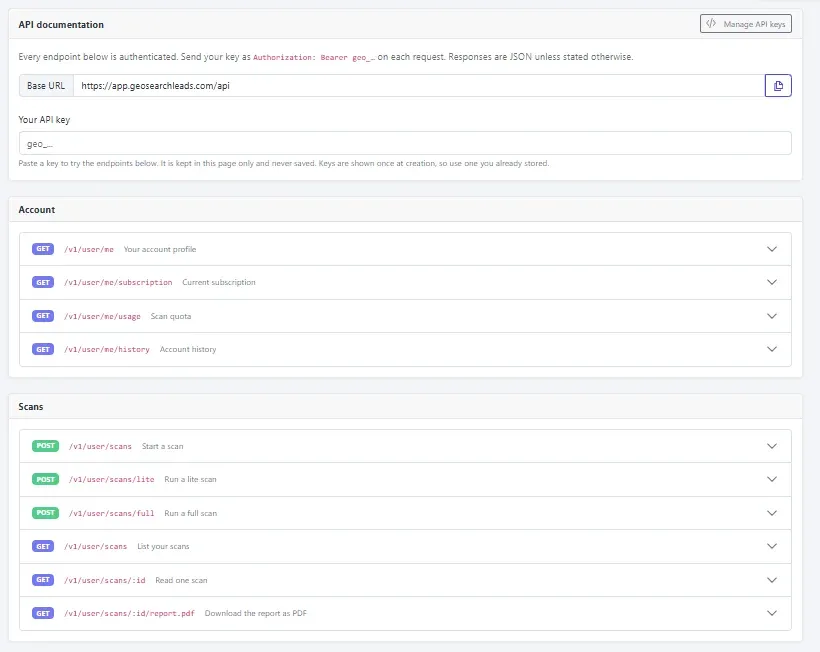
You can review named keys, creation details, and last-used information from the API keys page. Individual keys can also be revoked when they are no longer needed.
How to use API access
Follow these steps to create a key, test requests, and begin connecting the API to your workflow.
- Confirm your account plan. API keys are available on Pro and Business. They are not available on Free or Lite.
- Open the API keys page. After signing in, go to Developer > API keys, or Settings > API keys where available.
- Create and save your key. Click Create API key, then copy the full key immediately. Because it is shown only once at creation, store it securely in your server-side application or automation credential storage.
- Open the API documentation. Go to Developer > API documentation, or select View API documentation from the API keys page.
- Test a request in the documentation. Paste the key into the Your API key field. You can run endpoints directly on the page and inspect their responses. The page does not save the key.
- Check scan quota first. Start with the scan quota endpoint to see your available scans before building a larger workflow. This helps your process account for the number of scans currently available.
- Send authenticated requests from your system. Use the base URL
https://app.geosearchleads.com/apiand include the Authorization header with every request. - Use the documented scan and report endpoints. Follow the endpoint documentation to start lite or full scans, list scans, retrieve individual results, and download PDF reports.
- Connect returned data to your process. For example, you might update a client record, make a report available in your application, or use scan findings in a workflow you have configured.
- Revoke keys that are no longer needed. Return to the API keys page and revoke an individual key when you no longer need it.
Practical ways to apply the API
The update is especially useful where scans and reports are part of a repeatable operational process rather than a one-off review.
Process a prepared website list
If your team works from a prospect or client list, you can build a script or workflow that submits the websites you have selected for assessment. The API supports starting both lite and full scans, allowing your own process to choose the appropriate scan type based on how you work.
Bring findings into internal records
Retrieved scan results can be connected to an internal tool or CRM record that your team already uses. This can reduce repeated copying between systems and keep the available scores, findings, and company details alongside the client or prospect information your team manages.
Include PDFs in client reporting
When a scan report is part of a client deliverable, use the PDF report endpoint to retrieve it through your workflow. You can then make that report available in an application or connect it to the reporting process you have configured.
Build quota-aware automations
A quota check can be a useful early step before you start additional work. Your own tool can check available scans first, then proceed according to the workflow rules you set. This is distinct from API call allowance, which measures requests to the API rather than the number of full scans.
Connect automation tools you manage
You can connect requests to workflows you build in platforms such as n8n, Make, or Zapier. The specific workflow, trigger, and destination are up to you. The API supplies the actions and data needed for your integration; it does not configure the automation for you.
API access, plans, and allowances
API access is included with the following plans:
- Pro: 10,000 API calls per month
- Business: 100,000 API calls per month
These monthly API call allowances are separate from scan quota. For example, an allowance of 10,000 API calls does not mean 10,000 full scans. Check your scan quota through the relevant endpoint when planning scan activity.
If you already use a supported plan, sign in to your account to create a key and explore the documentation.
Frequently Asked Questions
What can I do with API access?
You can read account information, including your current subscription, scan quota, and account history. You can also start lite or full website scans, list scans, retrieve an individual scan result, and download PDF reports for scans.
Which plans include API keys?
API keys are included with Pro and Business plans. They are not available on Free or Lite, so an account on one of those plans cannot create an API key.
How should I authenticate an API request?
Send your API key with every request in the Authorization header using the Bearer format. Use Authorization: Bearer YOUR_API_KEY, replacing the placeholder with your complete key and retaining its geo_ prefix.
Can I test requests before building an integration?
Yes. The interactive API documentation lets you paste a key into the Your API key field, run endpoints, and inspect real responses before writing integration code. The documentation page does not save the key you paste into it.
Does the monthly API call allowance equal my scan quota?
No. API call allowance and scan quota are separate measures. A monthly allowance counts API requests, while scan quota relates to the scans available to your account. Use the scan quota endpoint to check available scans before starting more work.
Does API access automatically connect my CRM or reporting tools?
No. The API provides documented actions and data for your own applications, scripts, and workflows. You build and manage any connection to a CRM, client portal, scheduler, reporting workflow, or automation platform.
Conclusion
API access gives you a way to make scans, results, quota checks, and PDF reports part of the systems your team already operates. By testing endpoints first, securing keys appropriately, and connecting only the workflow steps you need, you can create a more consistent process for handling website assessments across clients and prospects.