
Chrome Extension: Free Quick GEO Checks, Scores and Scan History
Our Chrome extension provides free quick assessments of pages you browse, with overall and category scores, a retained toolbar score, and scan history. Review results in your dashboard or route completed extension scans to configured webhook workflows.
We have introduced a Chrome extension for GEO Search Leads that lets you assess the page you are currently browsing and review an initial GEO assessment without leaving your browser. Quick extension scans are free forever, including with a free account, giving you a practical way to check pages during content reviews, prospect research, and day-to-day browsing.
The extension is designed for a fast first look. It shows an overall assessment score and category scores, retains the latest scan score in the browser-toolbar badge, and keeps previous checks available through History. Completed extension scans also appear in your dashboard overview, where you can return to the work you recorded while browsing.
Free quick checks in the browser
A quick scan assesses the open webpage and presents its result in the extension panel. The panel includes an overall score plus a category breakdown that can help you decide where a page may deserve closer investigation.
The categories shown can include Citability Answer, Structured Data, Schema Intelligence, Entity Authority, and Accessibility Agents. These scores reflect the checks performed by the tool. They are an initial indication for review, not proof of visibility, rankings, or citations across AI platforms.
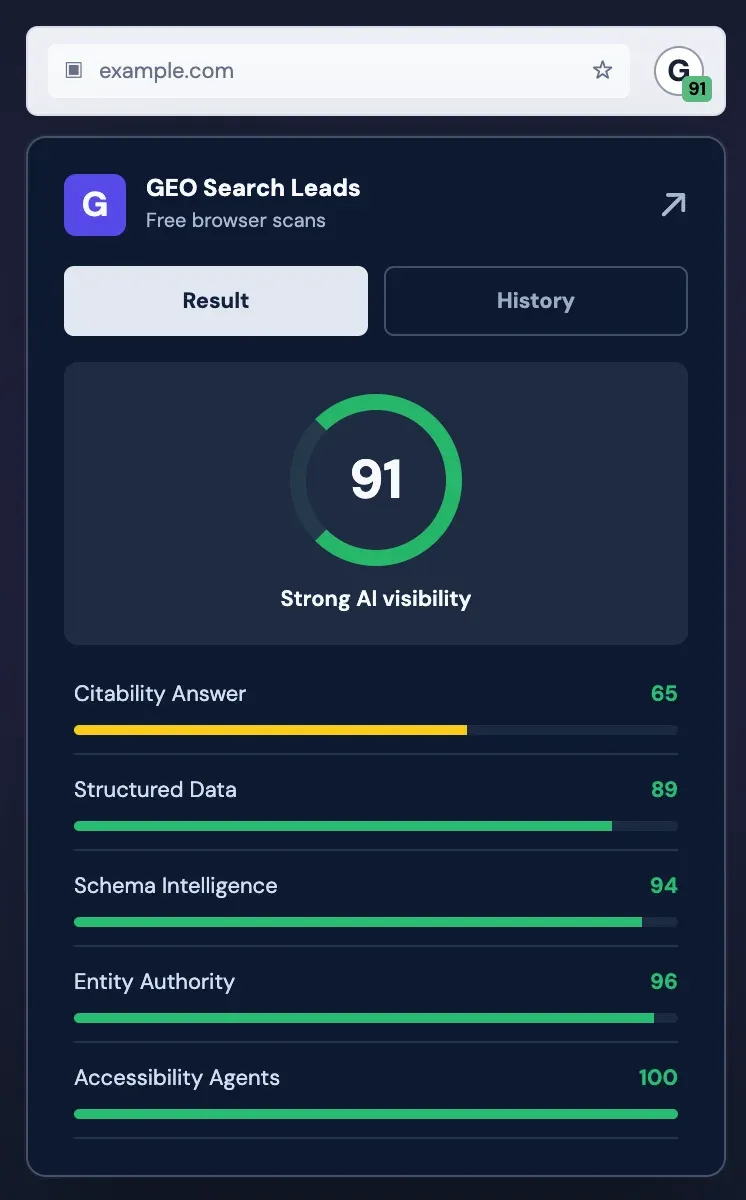
The values in the image are illustrative. Your assessment depends on the page being checked, and an overall score should be used to guide investigation rather than as a standalone measure of real-world AI visibility.
Keep the latest score and revisit earlier checks
After a completed quick scan, the extension retains its score in the browser-toolbar badge. This means you can refer to the result while continuing to browse without reopening the results panel. The badge retains a scan score; it does not continuously monitor pages or automatically detect website changes.
The History tab gives you access to previous extension scans from within the browser. It is useful when you are checking several pages in one session, returning to an earlier assessment, or keeping track of the pages already reviewed. For a broader view of your recorded work, scan results also appear in your dashboard overview.
How to install and use the extension
- Install the extension from the Chrome Web Store, then sign in to your account after installation. A free account can use the extension's free quick scans.
- Open the webpage you want to assess and use the extension to scan it. This starts a quick browser assessment of the page you are viewing.
- Review the overall score and category breakdown in the results panel. Treat the findings as an initial indication of areas that may need further investigation.
- Check the browser-toolbar badge when you want to refer to the retained score without reopening the results panel.
- Return to your dashboard overview to review the recorded scan results beyond the browser popup.
- Select Full insights when you want a full scan and deeper insights. In the supplied Dutch interface, this action is labelled “Bekijk alle inzichten”. A full scan is separate from the free quick-scan allowance.
- To connect completed extension scans to a workflow, open Webhooks in the dashboard. Create or edit a webhook, provide your receiving URL, select Extension under Send for scans started from, and save the webhook with Enabled switched on.
- Configure your receiving system or automation tool to handle the delivered result. For example, use the fields actually supplied in the webhook payload to record an assessment, notify a colleague, or create a review task.
Use quick assessments to prioritize deeper review
The extension supports practical checks at the point where decisions are often made: while you are already looking at a page. During a content review, you can assess your own pages and identify which ones may need a deeper look. Before a client conversation, you can use an initial assessment to inform the pages you want to discuss. When reviewing multiple URLs, History helps you return to earlier checks instead of losing track of the session.
Quick checks also help separate pages that need a fuller investigation from those that do not yet require one. If the initial breakdown suggests an area worth exploring, use Full insights for the next step. The quick assessment and a full scan are distinct actions, so the free availability of extension checks does not mean that full scans are free.
Send completed scans into existing workflows
Webhooks let completed extension scans send their results to a configured receiving URL. Selecting Extension as the scan source ensures the webhook is intended for scans started from the browser extension.
This connection can fit into workflows built with tools such as n8n, Make, or Zapier, or with a process running on your own server. The receiving system is where you configure any follow-up action. Depending on the fields in the delivered payload, examples include:
- Recording the assessment in a spreadsheet or database.
- Notifying a colleague that a page is ready for review.
- Creating a follow-up task for a content or technical review.
These are workflow choices you configure in the receiving system, not automatic actions performed by the extension itself.
Already use the dashboard? Sign in to your account.
Frequently Asked Questions
Are quick scans in the Chrome extension free?
Yes. Quick scans in the extension are free forever, including for users with a free account. This applies to the browser-based quick assessment. Full scans are a separate action, so the availability of free quick scans should not be read as an indication that full scans are free.
What does the extension score show?
The extension shows an overall assessment score and category scores for the checks it performs on the page. Categories shown can include Citability Answer, Structured Data, Schema Intelligence, Entity Authority, and Accessibility Agents. The scores help identify areas for further investigation, but they do not prove rankings, citations, or visibility across AI platforms.
Does the toolbar badge monitor a page for changes?
No. The browser-toolbar badge retains the score from a completed extension scan so you can refer to it without reopening the results panel. It is not continuous monitoring and does not automatically detect changes to a website.
Can I review pages I checked earlier?
Yes. The History tab lets you revisit previous extension scans from within the extension. This is useful when reviewing several pages, returning to an earlier assessment, or tracking pages checked during a browsing session. Completed results are also available in your dashboard overview.
How can I send extension scan results to another workflow?
Configure a webhook in the dashboard, provide the receiving URL, select Extension under Send for scans started from, and save it with Enabled switched on. Your receiving system can then handle matching completed scans, such as by recording the result, sending a notification, or creating a task using supplied payload fields.
Conclusion
The Chrome extension makes it easier to add a quick page assessment to the browsing and review work you already do. Use its free quick scans, retained badge score, and History tab to keep assessments accessible, then return to the dashboard, request Full insights, or route completed scans into a configured workflow when a page needs the next step.